

- Software Products
- Trial Software
- CAD Translation
- Testimonials
- Overview
- Pricing
- Knowledge Base
- Contact Us -
- Languages
How the Unisoft
ProntoPLACE software (
www.unisoft-cim.com/pcbplace.php ) is used in the JUKI Pick & Place
environment.
How to use the
Unisoft software with a JUKI Pick & Place machine:
With the Juki software, JaNets, the Unisoft software creates the placement programs for your PCB project in either Juki ISS XML (.ISS) or Juki JaNets format.
.
Process:
This follows the same general workflow used by most pick-and-place systems: external data preparation followed by importing the data into the machine’s programming environment. For Juki machines, the Juki Program Editor module is then used to handle any additional details needed to run the project.
The sample formats below that
Unisoft creates—based on hundreds of different combinations of CAD, XYR,
Gerber, or BOM input data—can go directly into Juki JaNets.
XML
<?xml
version="1.0" encoding="utf-8"?>
<productionProgram>
<headerData>
</headerData>
<core>
</core>
<model>
</model>
<machine>
</machine>
</productionProgram>
R273,2.819,184.963,270,RSM2.00KBMR
D33,8.865,182.398,90,DMURA120T3GSM
R105,12.675,183.287,0,RSM4.70BMR
D34,17.526,179.832,90,DZHCS400TASM
D42,20.549,179.858,270,DONOTSTUFF
R272,25.578,183.312,270,RSM2.00KBMR
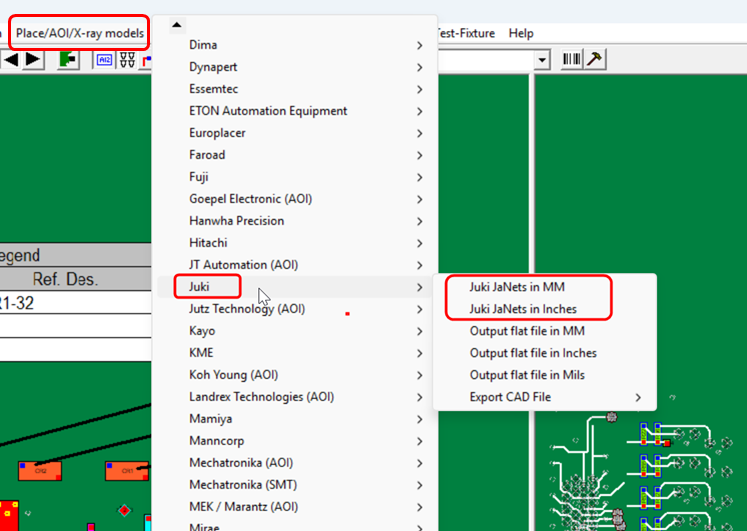
If you want to export the Juki JaNets .ISS XML file so it can
be imported directly into JaNets, first import your PCB file and Bill of
Materials (BOM) into the Unisoft software as you normally would. Then use
the Juki .ISS XML export option
from the export menu to create the Juki JaNets .ISS XML file.
Note: The JUKI EPU (Electronic Programming Unit) path may no longer be a
viable option. At this point, JUKI JaNets is the better choice.
Additional Benefits of using Unisoft with JUKI and
Other Pick & Place, AOI, Test & Selective Soldering Machines, as well as overall Shop Floor PCB
Assembly Operations
Unisoft automatically processes the wide range of file formats that
make up CAD files, XY rotation data, Gerber-only data, and BOM files. These
can combine in hundreds of different ways for each unique PCB design, and
Unisoft brings all of that together to generate complete component placement
information.
Unisoft has been doing this for over 40 years and has
thousands of customers, so the depth of our importers is unmatched. That’s
usually not the case with the importers that come from a Pick & Place
company. It’s just a different standard. Our standard is simple: we read
everything in—modern and legacy PCB designs—and we do it correctly, every
time, no exceptions.
This includes extracting the reference designators, rotations, part
numbers, and package shapes from the PCB design and the BOM. It also handles
rotation normalization if needed (0° reference vs. CAD), and identifies
fiducials on the panel, etc.
The software then converts all of that into clean, structured Pick
& Place manufacturing data. The whole issue of dealing with multiple file
formats from customers—whether they’re electronic contract manufacturers or
large OEMs—is handled and solved by Unisoft.
The CAD file,
ODB++, IPC-2581, GenCAD, XY location/rotation/center data,
Gerber only derived data and BOM and similar sources
normally provide only part of the data that a Juki machine or other
pick-and-place machine ultimately needs. The machine program often requires
additional manufacturing and process information that does not exist in the
original CAD & BOM data. Unisoft takes the available data from all of these
different input sources and properly maps it into the Juki and other machine
formats, helping reduce programming time and optimize the setup process so
the project can be up and running as quickly as possible.
That prepared data can then be used inside the JUKI programming
environment. In practice, this means Unisoft handles the CAD translation and
data preparation, while JUKI software handles the final machine-specific
program generation. This
combination typically simplifies the programming workflow and reduces the
amount of manual work normally required when preparing machine programs.
If you have multiple Pick & Place machine lines—not just JUKI—those
can all be programmed at the same time using Unisoft. The same applies to
AOI inspection machines, ATE test equipment, and selective soldering
machines. All of these can be handled and programmed from the same software
environment.
Since Unisoft also supports programming for test equipment and
related processes, it includes a lot of CAD data that is typically missing
from standard Pick & Place manufacturer software. This includes things like
component pin information, full netlist data, trace runs, etc. That data is
all available inside Unisoft and can be used to support other shop floor
operations.
The Unisoft software can also be used to create assembly process
documents, generate kitting labels, perform first article inspection,
produce assembly and part cost reports, and generate solder joint count
reports (DPMO – Defects Per Million Operations). It can also assist with
assembly, rework, repair, and technician troubleshooting and hundreds of
other features all from one software system.
Manufacturing Execution System (MES) software is also available and is used
on the shop floor to track and control PCB production in real time.
The information
above is provided for general informational purposes only and reflects
common SMT programming workflows. Actual system configurations, processes,
software versions, programming procedures and functions, and licensing
arrangements may vary depending on the specific JUKI machine model and
installation. Customers should
confirm all programming requirements directly with JUKI Corporation or an
authorized JUKI distributor.
Workflow descriptions are for general guidance only. Unisoft does not
control JUKI software or equipment operation, and final program verification
and machine validation remain the responsibility of the end user.
Independence
Notice
Unisoft
Corporation is an independent software developer and is not affiliated with,
endorsed by, or sponsored by JUKI Corporation. References to JUKI products,
processes or software are provided strictly for interoperability discussion
and informational purposes.
Copyright
Notice
© Unisoft
Corporation. All rights reserved.
JUKI®, JaNets®, JUKI EPU, JUKI HLC, JUKI .IS/.ISS and JUKI Flexline CAD® are
trademarks or registered trademarks of JUKI Corporation. All other product
and company names mentioned are the property of their respective owners.